


Adobe Photoshop gives several options to remove someone (or any object in general) from a picture. One of the simplest methods, using the Content-Aware Fill tool, is the one we show in this guide.
Make a Selection
You can make a selection in Photoshop in a couple of different ways. In this example, we’ll use the Polygonal Lasso tool.
- Click on the Polygonal Lasso tool.

Click on the Polygonal Lasso tool. - Then click near the edges of the person you wish to select. The selection does not have to be perfect.
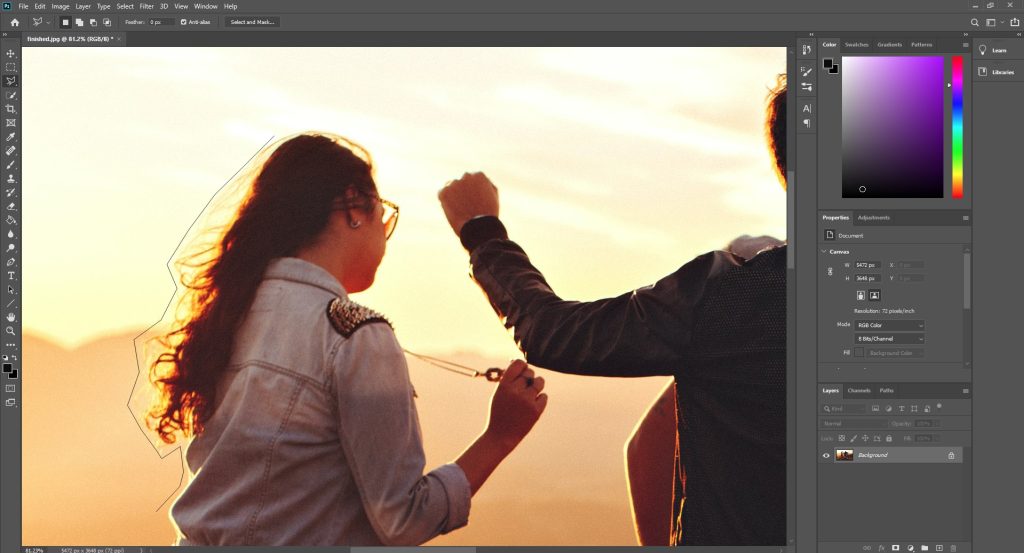
Click near the edges of the person you wish to select.
Using the Content-Aware Fill tool
After you’ve selected the person you want to remove, it is time to remove them.
- Go to Edit > Content-Aware Fill.
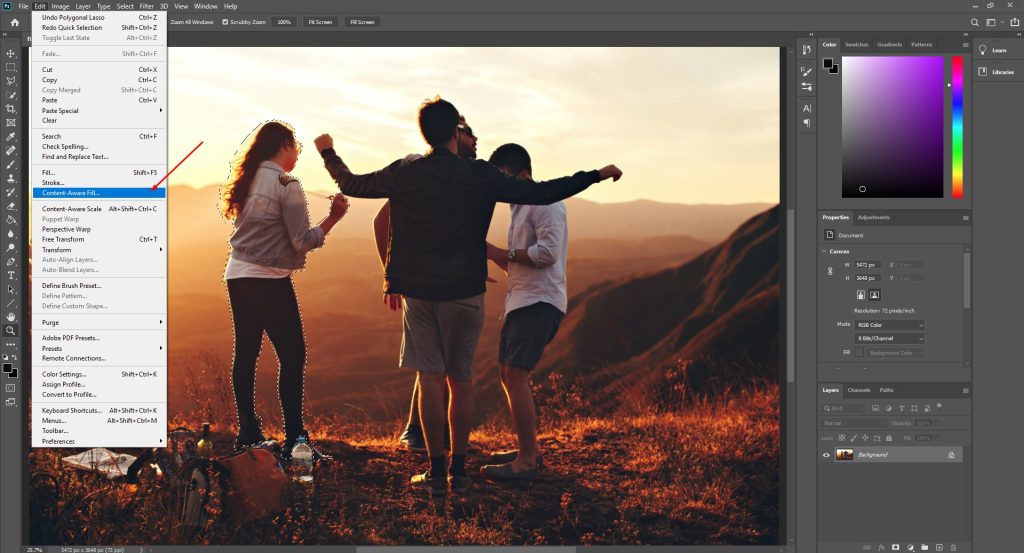
Go to Edit > Content-Aware Fill. - In the window that pops up, make sure that you select Auto under “Sampling Area Options.” Then click OK.
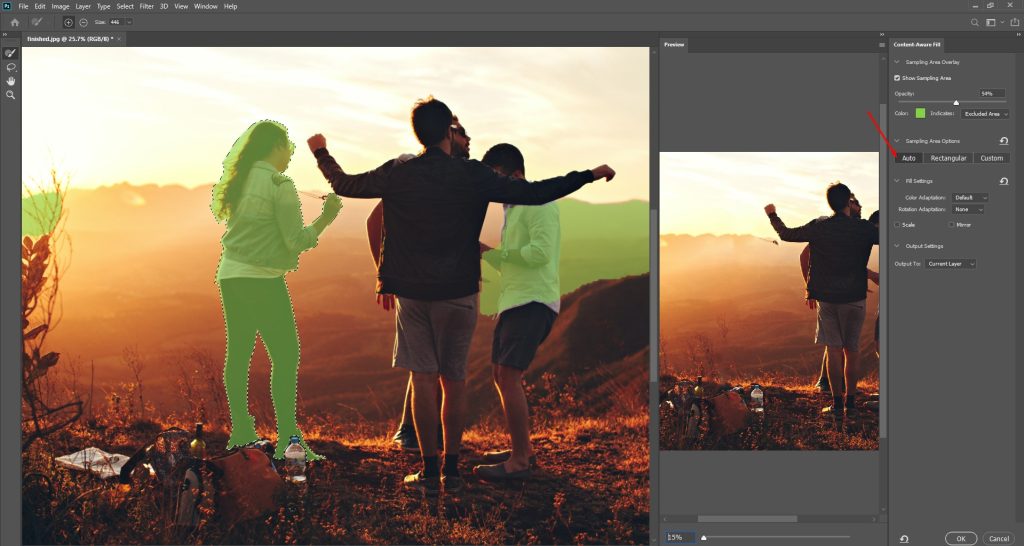
Select Auto under “Sampling Area Options” and click OK.
Making Corrections
If you notice the result is not perfect, you can correct it using the Content-Aware Fill tool again.
- Use the Polygonal Lasso tool to make a selection of the area you wish to correct.
- Go to Edit > Content-Aware Fill.
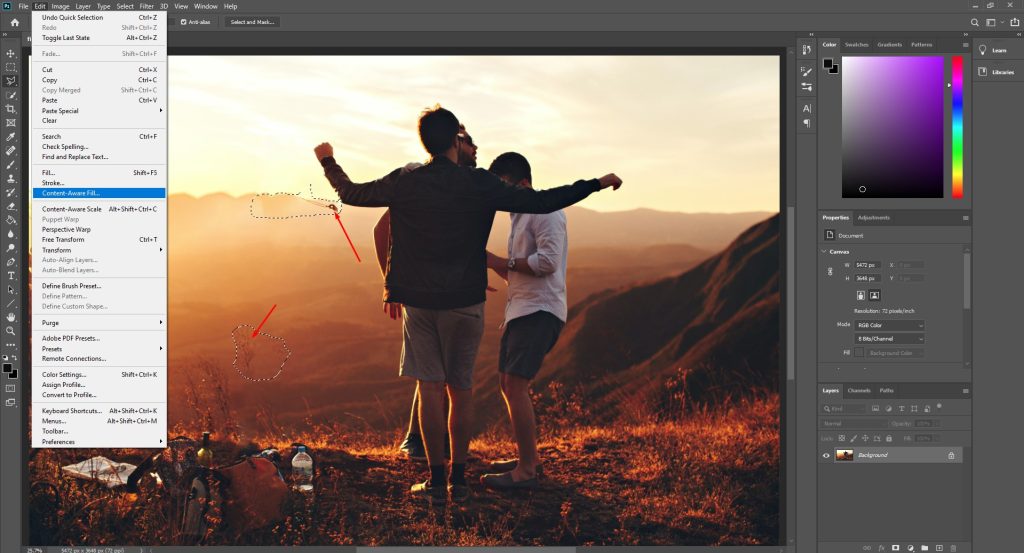
Make a selection and go to Edit > Content-Aware Fill. - Select Auto, and click OK.

Select Auto and click on OK. - You are done!
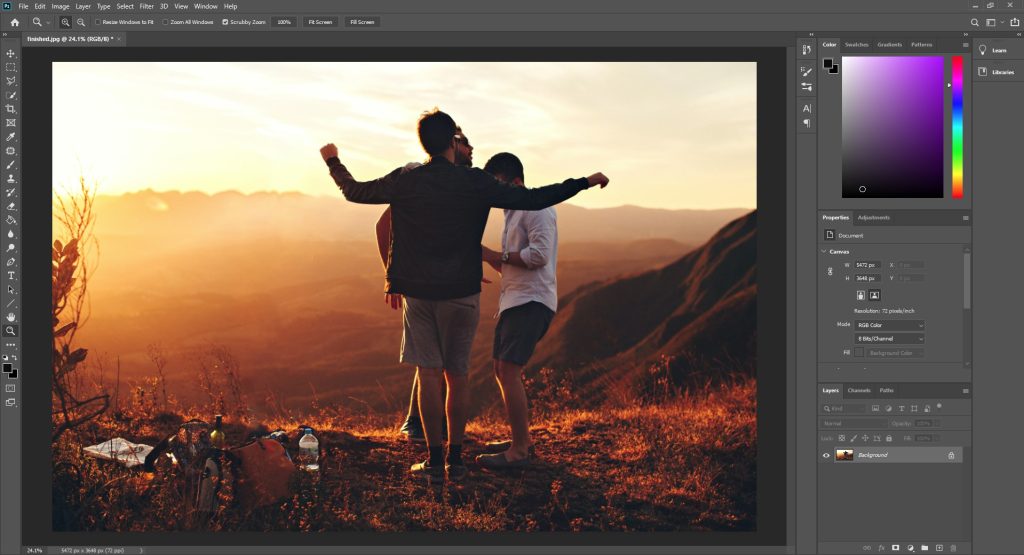
The results.